Kamet Library Guide
Welcome! We use an honor system. There is no paperwork. Just use the app to find and check out books. Do not damage the books.
If you lose or break a book, you must replace it. There are no late fees, but bring books back on time so others can read them.
CRITICAL RULES
- 1. Read this whole guide first. Do not skip ahead or you will get stuck.
- 2. Sign up on a web browser. Account creation is a one-time step. Do it on Chrome or Safari.
- 3. Then get the app. After you sign up online, download the mobile app and log in.
- 4. Use the app for everything else. Checking out, returning, and searching for books is done 100% inside the app.
Account Registration
Account Creation
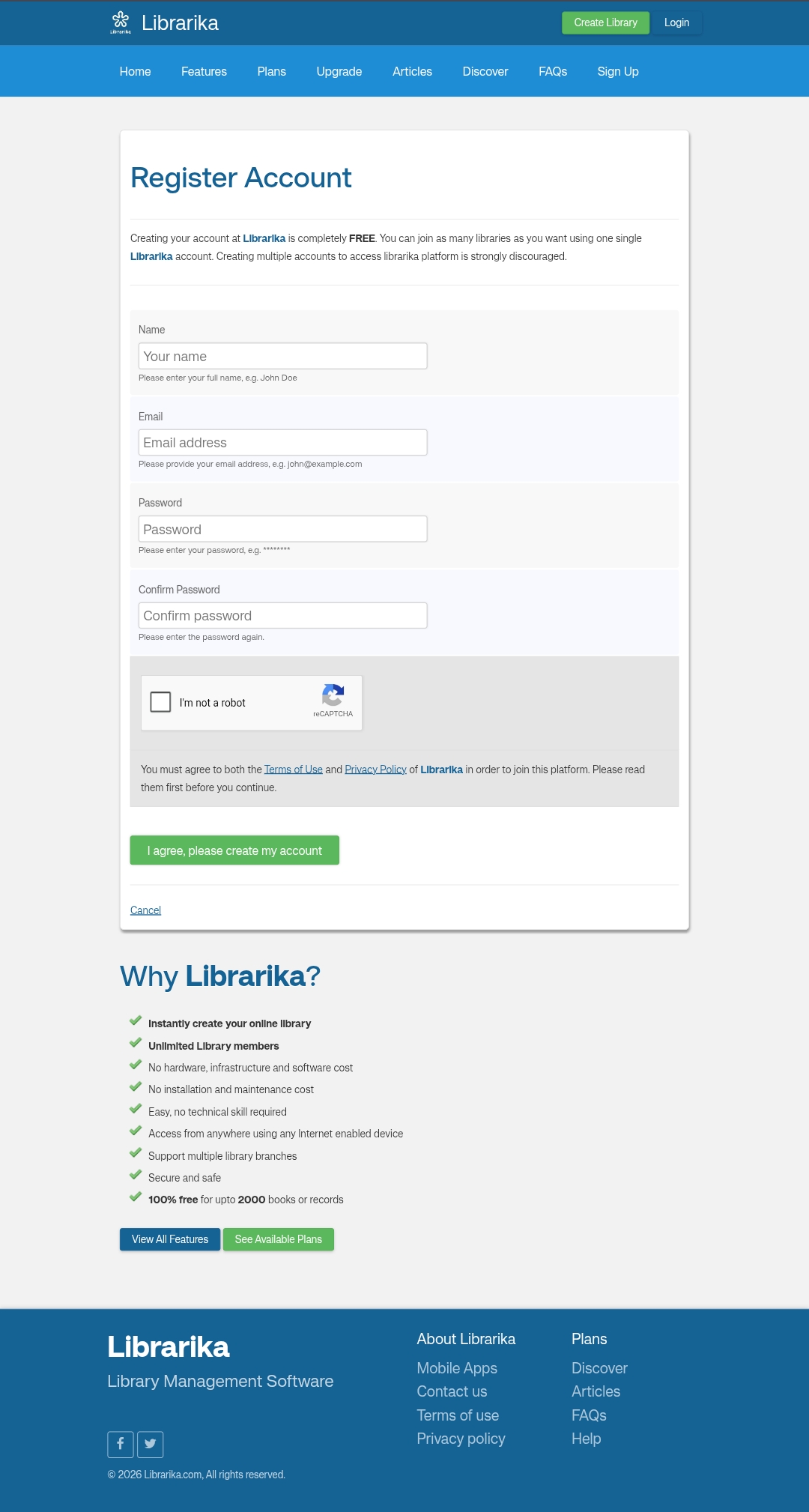
Go to librarika.com/users/register and fill out the form to create your free account. This will be done on a web browser like Safari or Chrome, not the app.
Email Verification
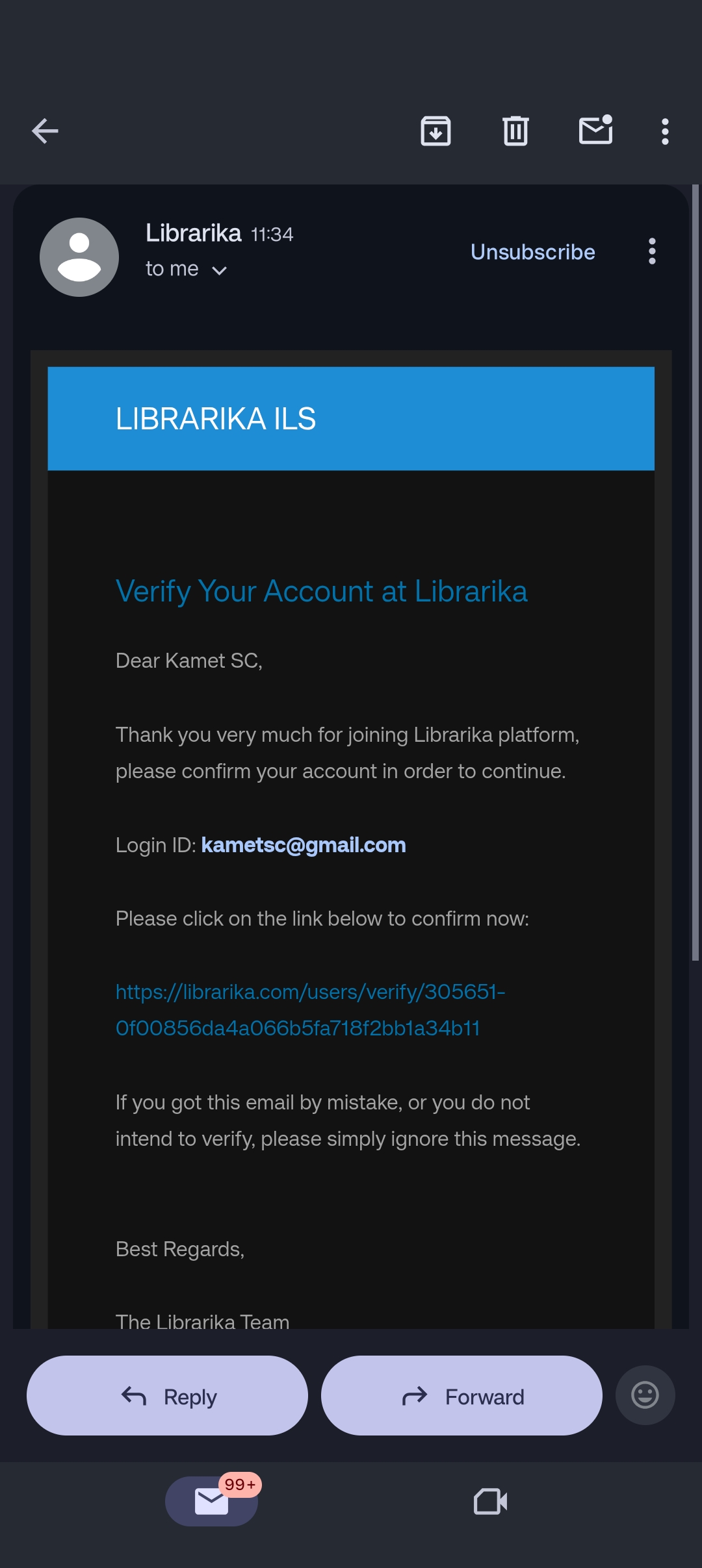
Open your email inbox, find the verification email from Librarika, and click the activation link to confirm your account.
Library Association
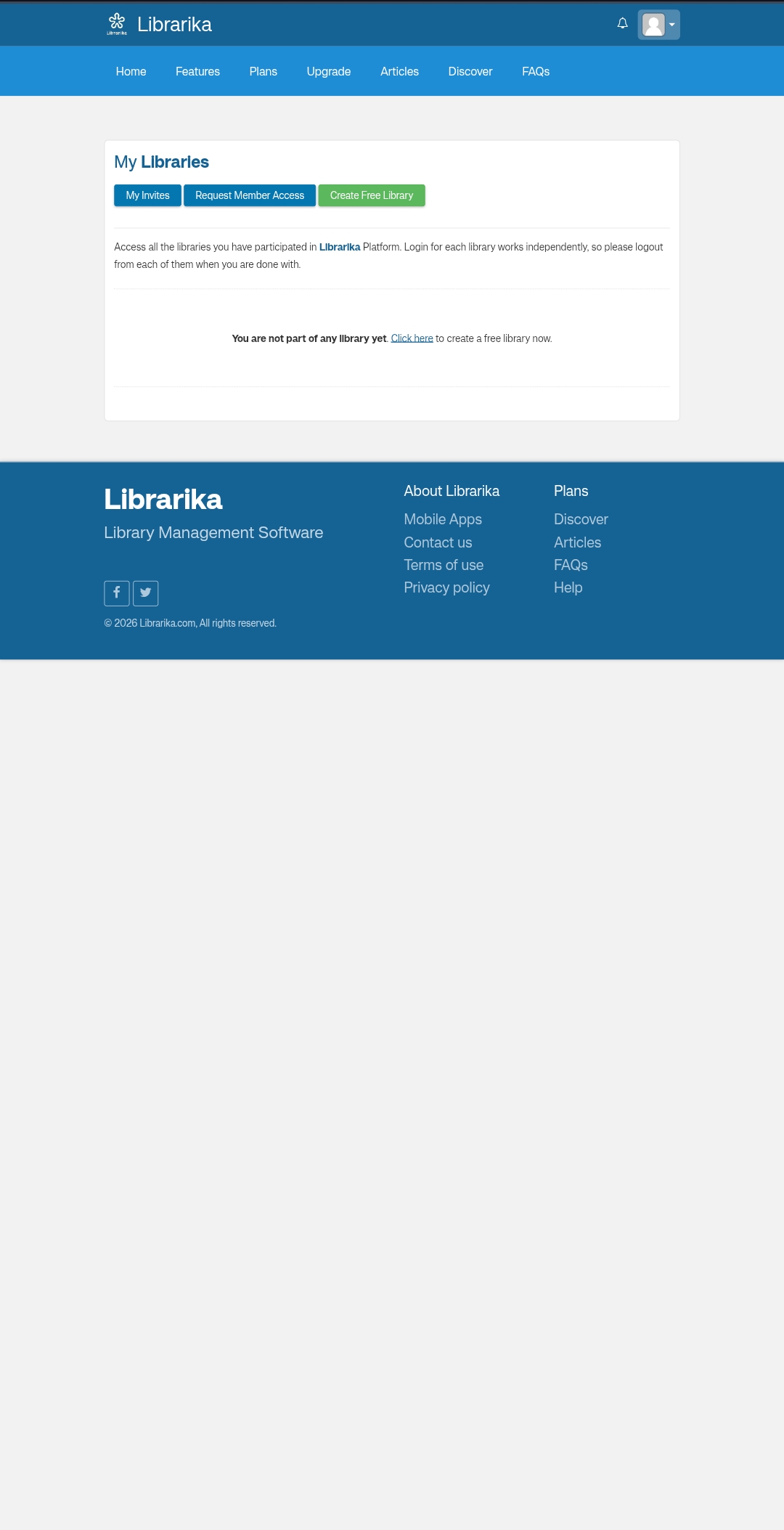
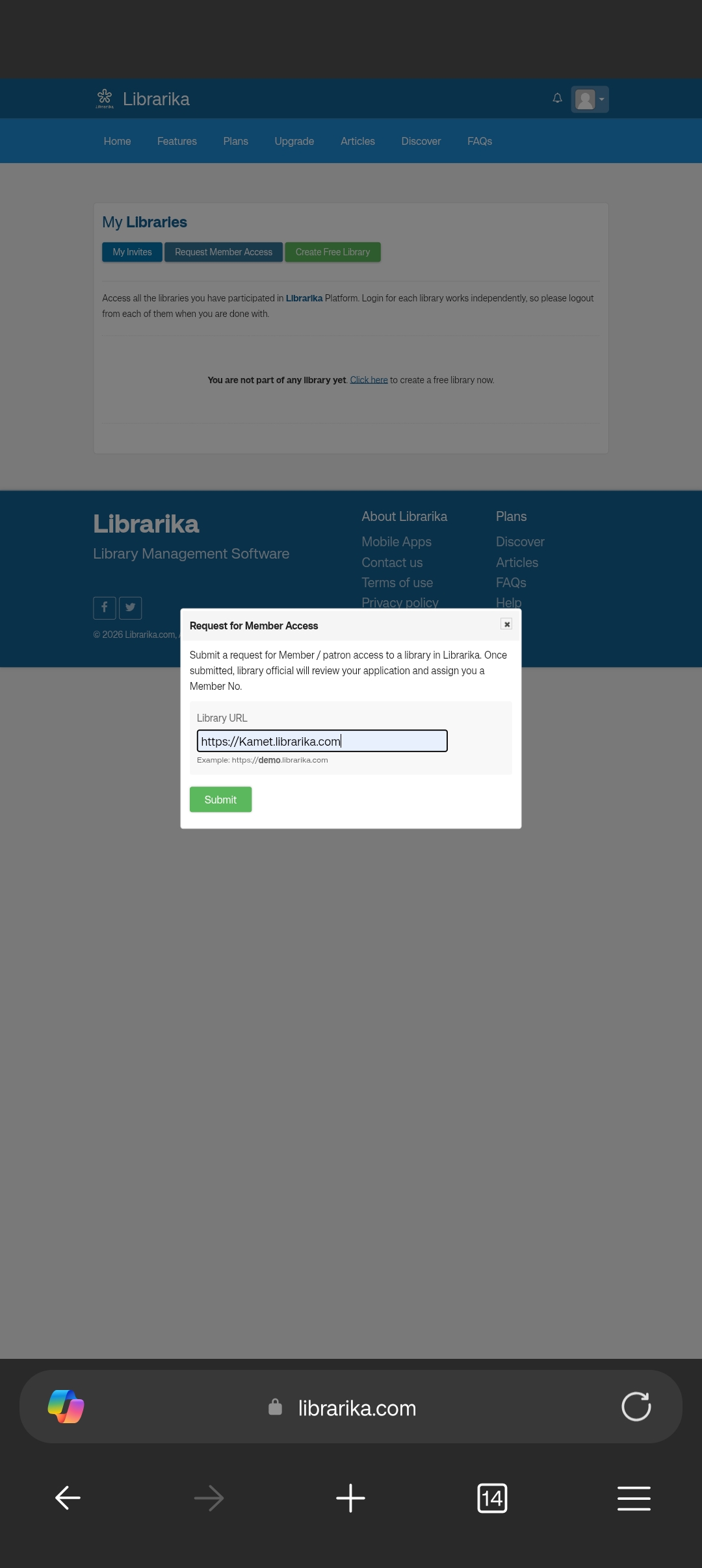
Go to librarika.com and sign in. Click on the profile icon on the top right corner. Select 'My Libraries'. You will see that you're not part of any library. Click on the 'Request Member Access' button to proceed.
Request Access
Click 'Request Member Access' and paste the library URL below into the text box. Tap to copy it securely.
App Download
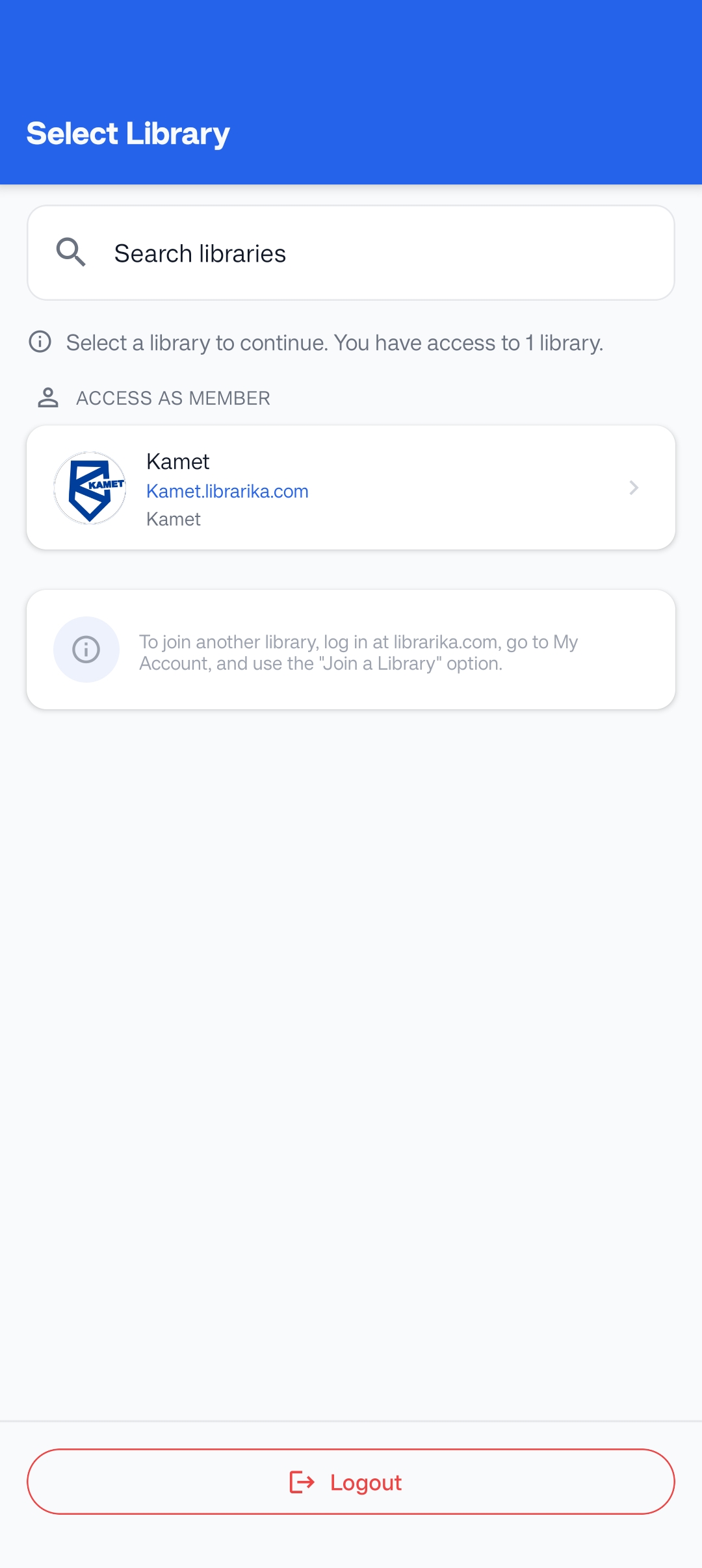
Download the app. Login and select your library from the 'Access As Member' list to finish setup. This is the final step of Registration and the steps 1 to 5 needs to be done only once.
Explore the Catalog
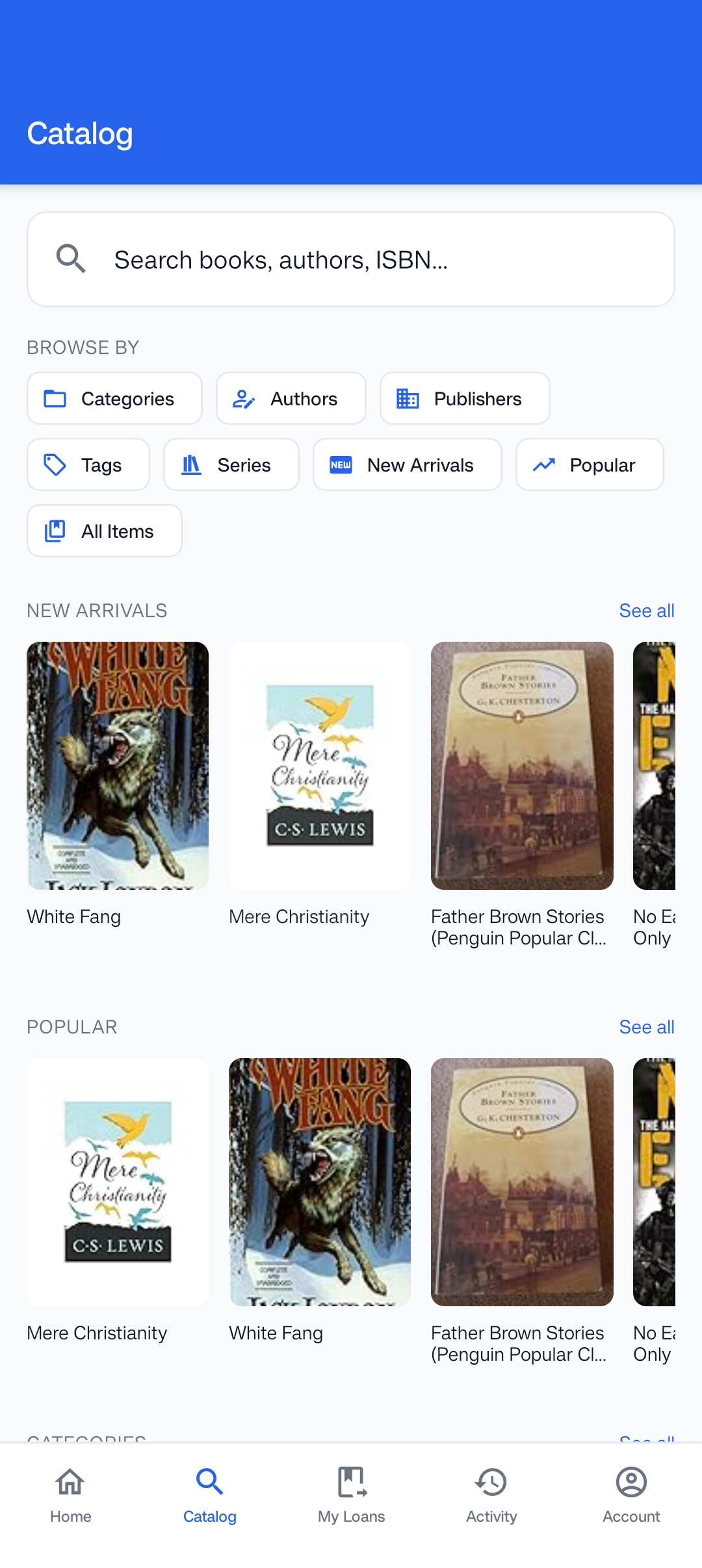
Tap the 'Catalog' tab at the bottom of the app. Use this to search for available books and check if the book you want is currently in the library.
Borrowing & Checking Out
Search the Catalog
Open the app and tap the 'Catalog' tab at the bottom. Use the search bar to find books by title, author, or ISBN.
Access Book Details
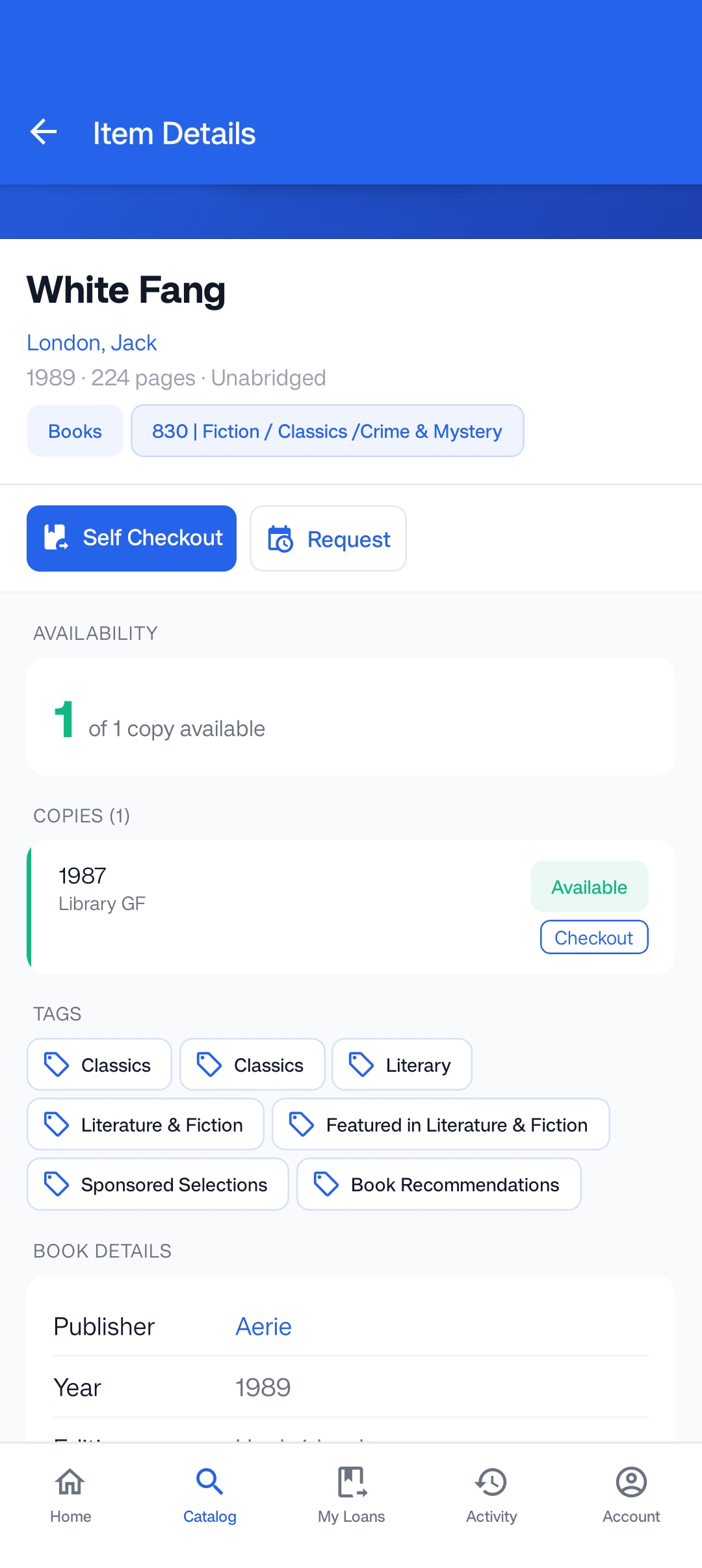
Tap on a book to view its details. Ensure at least 1 copy is listed as 'Available'.
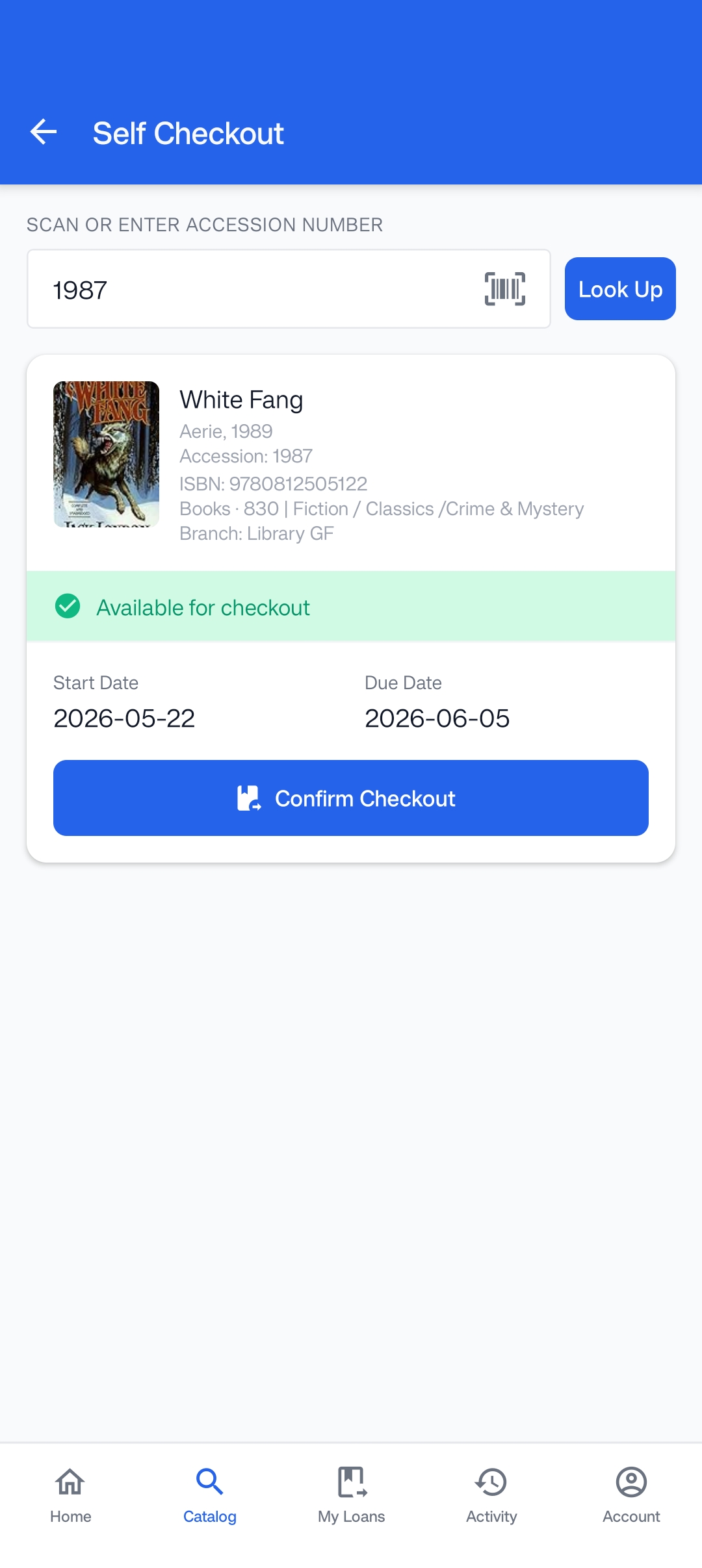
Self-Checkout Scan
Tap the 'Self Checkout' button. Verify the Accession Number matches the physical book, then confirm the checkout. You can even place the book on hold for later pickup if you are not ready to take it home immediately. But please collect it within 5 days to avoid cancellation.
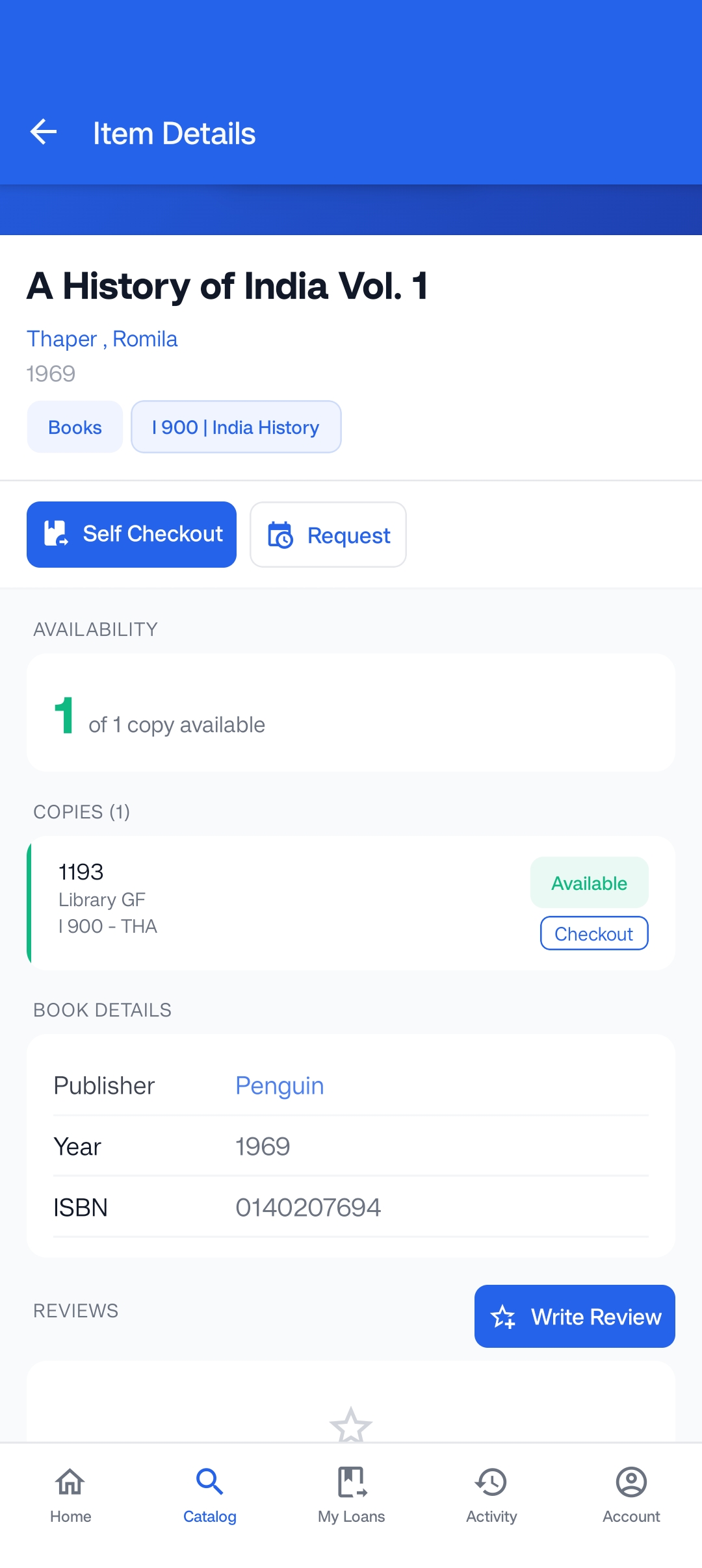
Discussion & Review
After reading, return to the book details page and tap 'Write Review' to foster discussion with other members.
Returning Materials
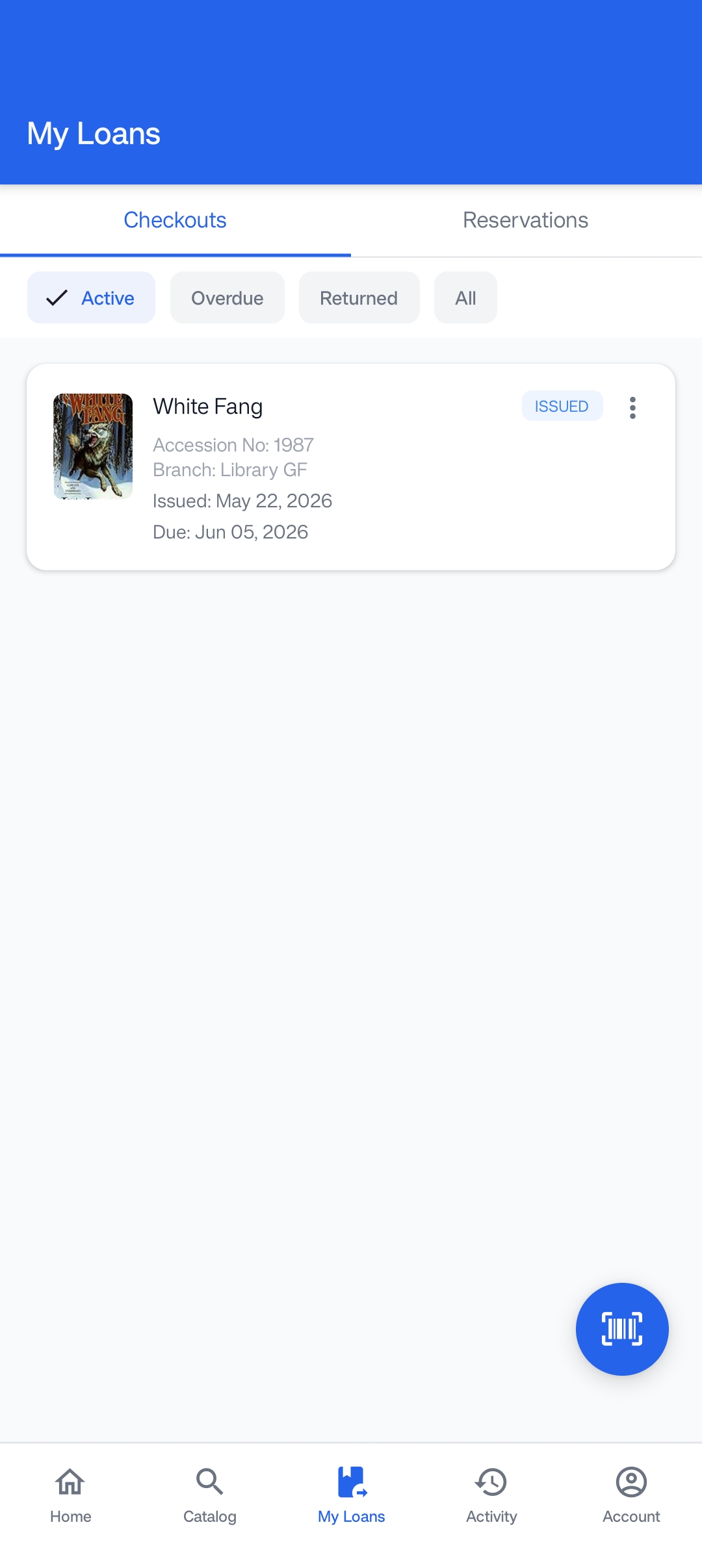
Locate Active Loans
When returning a book, open the app and tap the 'My Loans' tab at the bottom to view your currently checked-out materials.
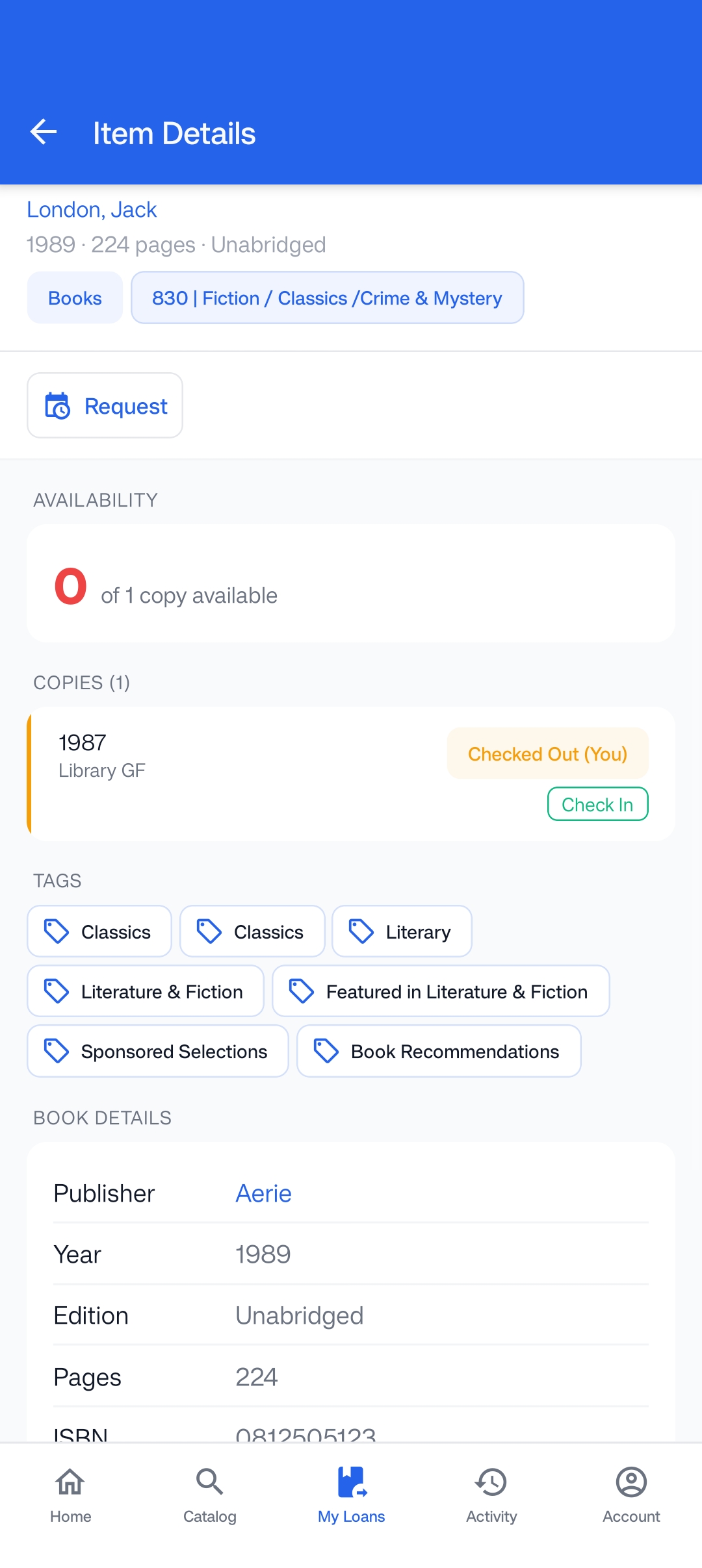
Initiate Return
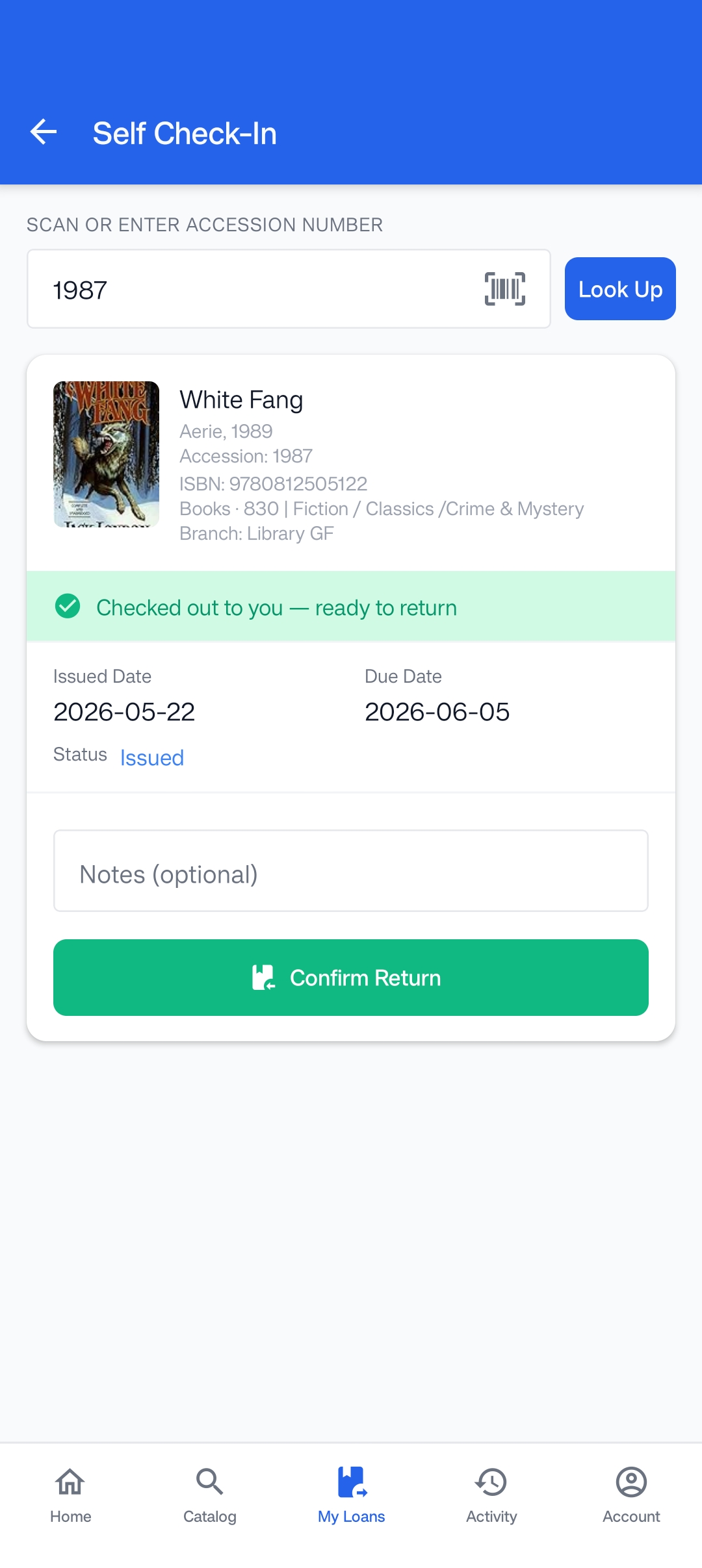
Tap on the active book you wish to return, then tap the 'Check In' button next to the copy details.
Damage Reports & Confirm
Verify the accession number. Use the 'Notes' field to record any physical damages, torn pages, or issues before tapping 'Confirm Return'.